Why Merge PDF Files?
Combining multiple PDF documents into a single file is one of the most common document tasks in any professional workflow. Whether you're assembling a quarterly report from separate financial statements, building a client proposal from multiple sections, or organizing scanned receipts for tax filing, merging PDFs eliminates the chaos of managing dozens of loose files.
The problem compounds quickly in collaborative environments. Your finance team sends the revenue summary as one PDF. Marketing contributes the growth charts in another. Legal adds the compliance appendix separately. Without a merge tool, you're either emailing a zip file or asking recipients to open five documents in sequence — neither is professional.
Beyond organization, merged PDFs are essential for submission workflows. Courts require filings as single documents. Immigration applications demand combined evidence packets. Grant proposals need unified submissions. A reliable merge tool isn't a convenience — it's a workflow requirement.
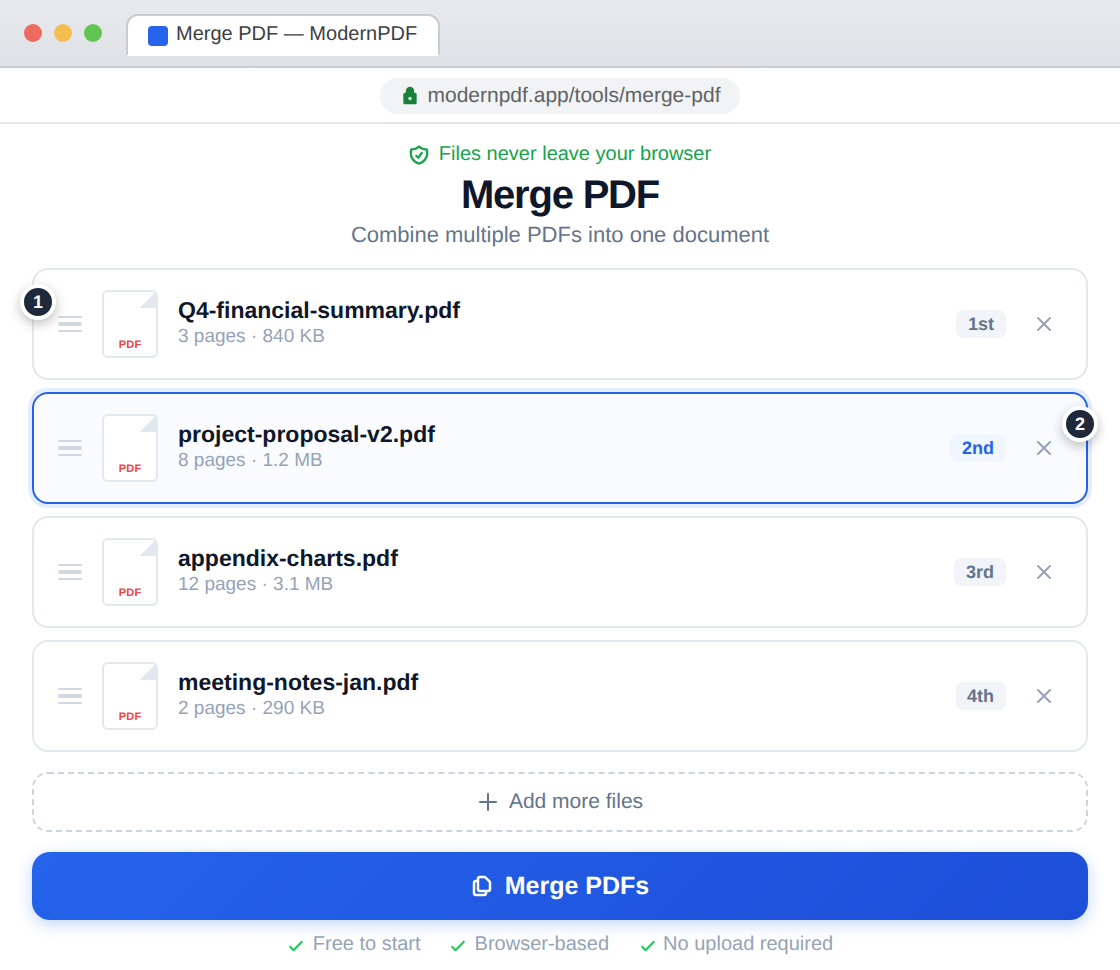
Method 1: Use ModernPDF (Recommended)
The fastest and most private way to merge PDFs is with ModernPDF's merge tool. Unlike every other online PDF tool, your files never leave your browser — the merging happens locally using WebAssembly.
Step-by-step instructions:
- Go to ModernPDF Merge and drag your PDF files into the upload zone (or click to browse)
- Rearrange files by dragging them into the desired order — each file shows a page count and size preview
- Click "Merge PDFs" and download your combined document instantly
Why ModernPDF is different: Every other online merge tool — Smallpdf, iLovePDF, Adobe Online — uploads your files to remote servers for processing. This creates real privacy risks, especially if you're merging contracts, financial records, medical documents, or anything with personally identifiable information. ModernPDF processes everything client-side. The files exist only in your browser's memory and are discarded when you close the tab.
Handling large merges: ModernPDF handles files up to 10MB on the free tier and 500MB on Pro. For merging dozens of files, add them in batches — the tool has no limit on file count. If your combined output exceeds your browser's memory (rare, but possible with hundreds of high-resolution pages), try compressing individual files with the compress tool first.
Method 2: Use Preview on Mac
Mac users have a built-in option through the Preview app, though the workflow is less intuitive than you'd expect from Apple.
- Open the first PDF in Preview
- Go to View → Thumbnails to show the page sidebar
- Drag additional PDF files from Finder directly into the thumbnail sidebar
- Arrange pages by dragging thumbnails into the correct order
- Go to File → Export as PDF to save the merged result
Limitations: Preview works for simple merges but struggles with large files, can be slow with image-heavy PDFs, and occasionally corrupts form fields or interactive elements during the merge. It's also Mac-only, which makes it useless in cross-platform team environments.
Method 3: Use Adobe Acrobat
Adobe Acrobat Pro includes a Combine Files feature that works well but comes at a steep price.
- Open Acrobat and go to Tools → Combine Files
- Click "Add Files" and select your PDFs
- Drag to reorder if needed
- Click "Combine" and save the output
Acrobat is powerful but requires a subscription starting at $22.99/month — roughly $276/year for a feature you might use a few times per month. For the merge function alone, a free tool like ModernPDF delivers the same result without the cost or the 500MB desktop installation.
Tips for Better PDF Merges
Check page orientation before merging. Nothing undermines a professional document faster than a sideways page in the middle. Run each file through a quick visual check — or use ModernPDF's rotate tool to fix any orientation issues first.
Be strategic about file order. Most merge tools, including ModernPDF, let you reorder files after adding them. But it's faster to name files with numeric prefixes (01-cover.pdf, 02-summary.pdf, 03-appendix.pdf) so they sort correctly when dropped in together.
Compress after merging. A merge of multiple image-heavy PDFs can balloon in size. After combining, run the result through a compression pass to shrink the file for email or upload.
Preserve quality intentionally. ModernPDF maintains the original quality of every page during the merge — no recompression, no downsampling. Some other tools quietly reduce image resolution during combining. If visual fidelity matters (architectural plans, photography portfolios, print-ready documents), this distinction is critical.
Frequently Asked Questions
Can I merge PDF files for free?
Yes. ModernPDF lets you merge PDFs for free with up to 3 tasks per day and a 10MB file size limit. There are no watermarks on the free tier — the output is identical to what Pro users get. Pro unlocks unlimited daily tasks and 500MB file sizes for $9/month or $49/year.
Is it safe to merge PDFs online?
With most tools, no — they upload your files to their servers. With ModernPDF, yes — your files never leave your browser. The merging is performed entirely on your device using WebAssembly technology. No data is transmitted, stored, or accessible to anyone. This makes it the safest choice for sensitive documents like legal contracts, medical records, or financial statements.
Can I merge PDFs on my phone?
Yes. ModernPDF works on any device with a modern web browser — iPhones, Android phones, and tablets included. No app installation required. The same zero-upload processing applies on mobile devices.
How many PDFs can I combine at once?
There's no limit on the number of files. You can merge 2 files or 50 files in a single operation. The constraint is total file size (10MB free, 500MB Pro) and your device's available memory. For extremely large merges, adding files in batches of 10-20 helps maintain performance.
Will merging affect PDF quality?
No. ModernPDF preserves every page at its original resolution and quality. Unlike some tools that recompress images during the merge process (silently degrading photo quality), ModernPDF performs a lossless combination. The output file contains the exact same data as the input files, just combined into one container.
Can I merge password-protected PDFs?
You'll need to unlock protected PDFs before merging. Use ModernPDF's unlock tool first (you'll need the password), then merge the unlocked files. This is a limitation of the PDF format, not the tool — encrypted files can't be combined without decryption.