Why Convert PDF to JPG?
While PDFs are great for documents, sometimes you need image files. Common reasons to convert PDF to JPG include:
- Social media — Most platforms prefer JPG/PNG over PDF
- Presentations — Insert PDF content as images in PowerPoint or Keynote
- Websites — Display document content without PDF viewers
- Thumbnails — Create preview images of documents
- Email — Some email clients handle images better than PDFs
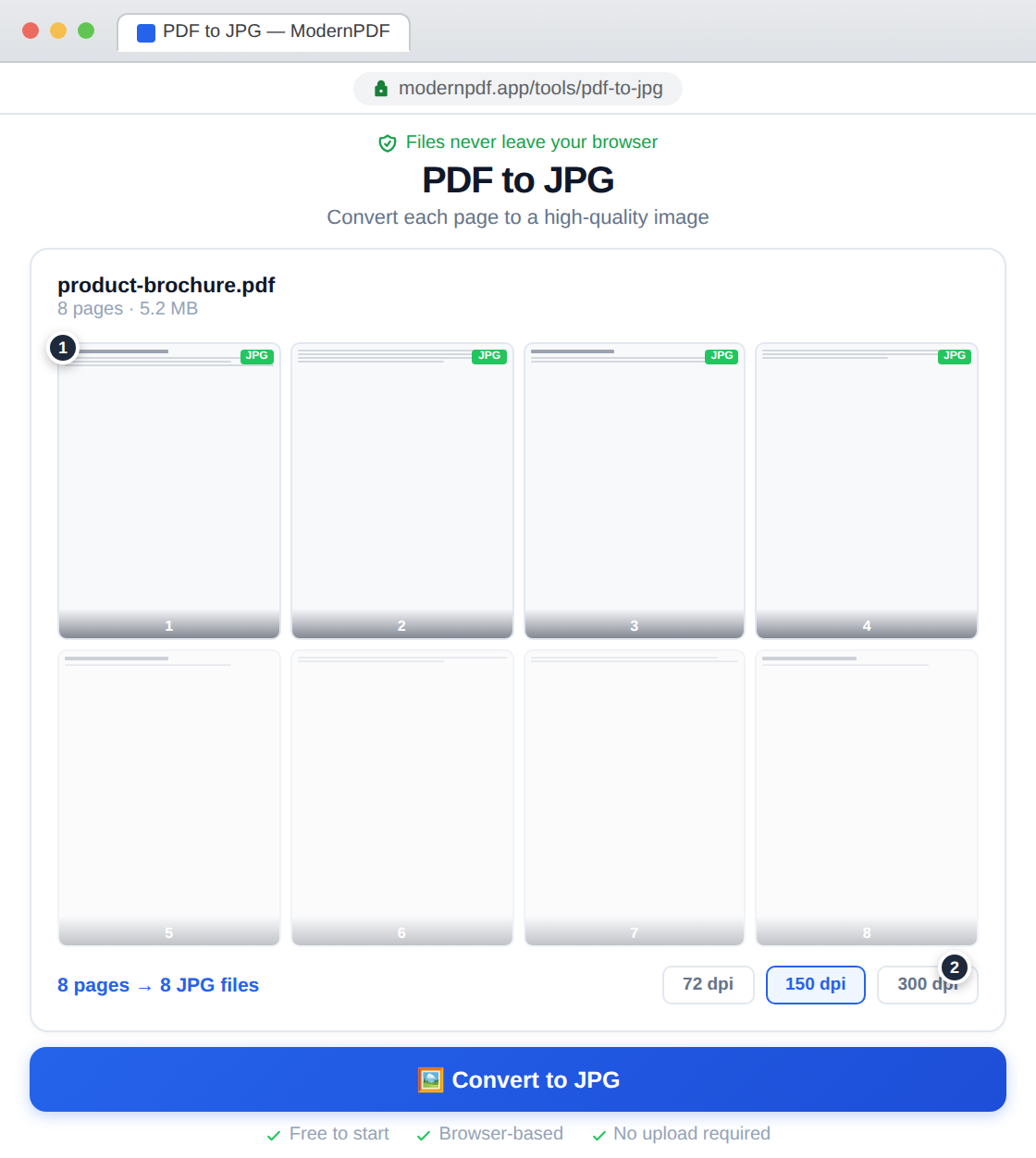
How to Convert PDF to JPG with ModernPDF
- Go to ModernPDF PDF to JPG
- Upload your PDF file
- Select your preferred image quality
- Click "Convert"
- Download individual images or get all pages as a ZIP
Choosing the Right Quality
ModernPDF offers multiple quality settings. Here's when to use each:
Standard (150 DPI)
Good for screen viewing, web use, and social media. Creates smaller files that load quickly. Text remains readable but may appear slightly soft when zoomed in.
High (300 DPI)
Ideal for printing and professional use. This is the standard resolution for print documents. Creates larger files but maintains crisp text and images.
Maximum
Use when you need the highest possible detail — large format printing, archival purposes, or when the PDF contains fine details you need to preserve.
JPG vs PNG: Which Format to Choose?
Both JPG and PNG have their place:
- JPG — Smaller files, best for photos and complex images. Uses lossy compression.
- PNG — Larger files, best for text-heavy documents and graphics. Lossless compression preserves every detail.
For most PDF conversions, JPG works well. Choose PNG if you need perfect text clarity or transparency support.
Tips for Best Results
- Start with quality source — A low-quality PDF will produce low-quality images
- Consider the end use — Web images can be lower resolution than print
- Check file sizes — Higher quality means larger files; balance quality with practical file sizes
- Convert specific pages — If you only need certain pages, convert those rather than the entire document
Frequently Asked Questions
What resolution should I use for PDF to JPG conversion?
For screen viewing, 150 DPI is sufficient. For printing, use 300 DPI. For large format printing or when you need maximum detail, use the highest available setting.
Will converting to JPG reduce quality?
JPG uses lossy compression, so there's some quality loss compared to the original PDF. For lossless conversion, use PNG format instead. ModernPDF offers high quality settings that minimize visible quality loss.
Can I convert multiple pages to separate JPGs?
Yes, ModernPDF creates one JPG per PDF page. You can download them individually or as a ZIP file containing all pages.
Is the conversion private?
Yes. With ModernPDF, conversion happens entirely in your browser. Your PDF is never uploaded to any server.