Why Compress a PDF?
PDF file sizes balloon for predictable reasons: embedded high-resolution images, redundant fonts, uncompressed content streams, and metadata bloat. A 24-page report with charts and photos can easily reach 20-30MB — well beyond the attachment limits of most email providers (Gmail caps at 25MB, Outlook at 20MB).
Large PDFs create friction at every stage of a document's lifecycle. They're slow to upload to portals, slow to download for recipients, and eat through mobile data plans. Government submission systems, job application portals, and insurance claim forms all impose file size caps — typically 5-10MB. When your PDF exceeds these limits, you need compression.
The challenge is reducing size without destroying quality. Cheap compression tools recompress every image to minimum quality, turning crisp charts into blurry messes and making text in scanned documents unreadable. Good compression is selective — it optimizes what can be optimized while preserving what matters.
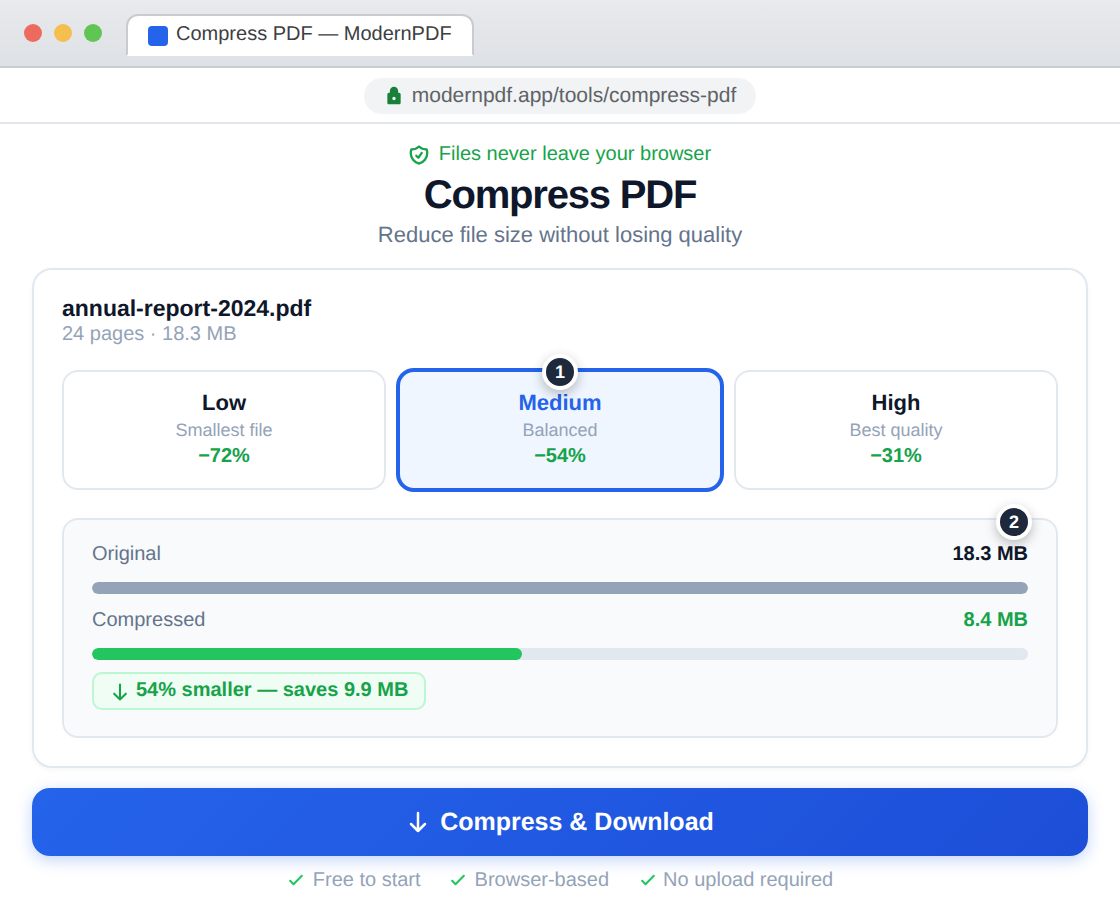
Method 1: Use ModernPDF (Recommended)
ModernPDF's compress tool processes your PDF entirely in your browser and gives you three quality presets to balance size against visual fidelity.
Step-by-step instructions:
- Go to ModernPDF Compress and drop your PDF into the upload area
- Choose a compression level: Low (maximum compression, ~70% smaller), Medium (balanced, ~50% smaller), or High (minimal compression, ~30% smaller)
- Preview the exact file size savings before committing
- Click "Compress & Download" to get your smaller file
When to use each level: Medium handles 90% of use cases — it cuts file size in half while keeping images sharp enough for screen viewing and standard printing. Use Low when you need to meet a strict size cap (like getting under 5MB for email). Use High when the document contains photography, medical imaging, or detailed diagrams where every pixel matters.
Privacy advantage: Unlike Smallpdf, iLovePDF, and other online compressors that upload your file to their servers for processing, ModernPDF compresses locally in your browser. Your financial statements, contracts, and medical records never leave your device.
Method 2: Use Preview on Mac
Mac's Preview app has a basic compression option hidden in the export dialog.
- Open the PDF in Preview
- Go to File → Export
- Under "Quartz Filter," select "Reduce File Size"
- Click Save
Warning: Preview's compression is notoriously aggressive. It often reduces images to 72 DPI regardless of the original quality, making documents look terrible on screen and unusable for printing. There's no way to control the compression level. For anything beyond rough drafts, use a tool that gives you control over the quality-size tradeoff.
Method 3: Use Adobe Acrobat
Acrobat Pro offers the most granular compression controls in the industry, but at a premium price.
- Open the PDF in Acrobat Pro
- Go to File → Save As Other → Optimized PDF
- Adjust image compression, font embedding, and other settings
- Click OK and save
The Optimized PDF dialog lets you set separate compression for color images, grayscale images, and monochrome images — useful for professionals who need precise control. But for the vast majority of users who just need a smaller file for email, the complexity isn't worth the $22.99/month subscription.
Understanding PDF Compression
What actually gets compressed: PDF compression primarily targets embedded images — they account for 80-95% of file size in most documents. The compressor re-encodes images at a lower quality or resolution, strips redundant color profile data, and removes invisible metadata. Text content and vector graphics barely change in size.
Lossy vs. lossless: Image recompression is lossy — some detail is permanently removed. However, for screen viewing and standard office printing, the difference between a 300 DPI original and a 150 DPI compressed version is invisible. The savings, however, are dramatic: a 50% DPI reduction yields roughly a 75% size reduction for images.
Why some PDFs don't compress well: If your PDF is mostly text with no embedded images, compression won't help much — text is already efficient. Similarly, PDFs that have already been compressed won't shrink further. If you see minimal savings, the file is likely already optimized.
Frequently Asked Questions
How small can I make a PDF?
It depends on the content. A 20MB image-heavy PDF can typically compress to 5-8MB at medium quality or 3-5MB at low quality. A 2MB text-only PDF might only shrink to 1.5MB since text is already compact. ModernPDF shows you the exact compressed size before you download, so there's no guessing.
Will compression make my PDF look blurry?
At medium quality, the difference is imperceptible for normal documents — charts, text, and standard images look identical. At low quality, you may notice slight softening in photographs, but text and line art remain crisp. High quality preserves the original appearance almost perfectly.
Can I compress a PDF for free?
Yes. ModernPDF's free tier includes 3 compressions per day with files up to 10MB. No watermarks are added. Pro users get unlimited compressions and support files up to 500MB.
How do I get a PDF under 1MB?
Use the Low compression setting for maximum size reduction. If the result is still too large, consider splitting the document into smaller sections using the split tool. For scanned documents, running OCR first and then compressing can also help by replacing image-based text with actual text content.
Is it safe to compress PDFs online?
With ModernPDF, your files never leave your browser. The compression runs entirely on your device using WebAssembly. Most other online compressors upload your files to their servers — a real concern for confidential documents, financial records, and anything with personal information.