What is OCR?
OCR (Optical Character Recognition) is technology that converts images of text into actual text data. When you scan a document, the result is essentially a picture — the computer doesn't know there's text in it. OCR analyzes the image, identifies letter shapes, and converts them to real text characters.
Modern OCR engines use AI and machine learning to achieve remarkable accuracy, even with imperfect scans, multiple languages, and complex layouts.
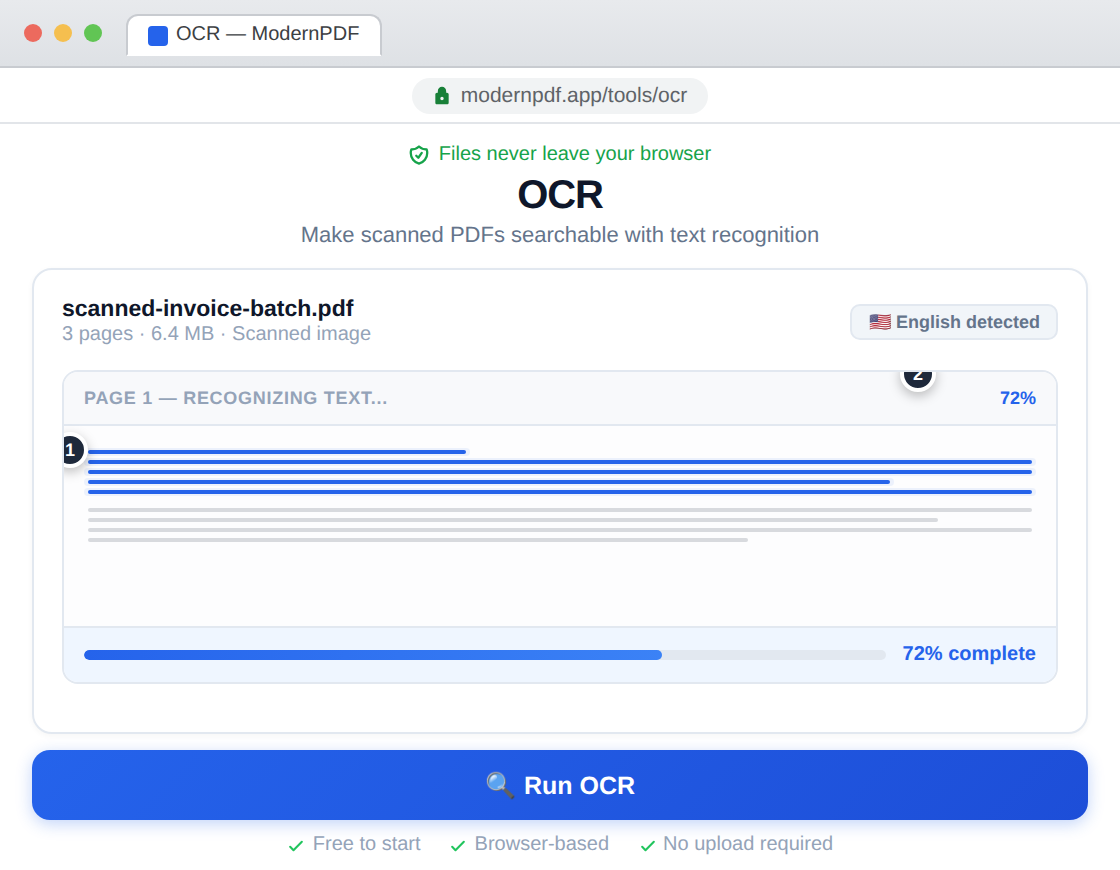
How to Make a PDF Searchable with ModernPDF
Our free OCR tool creates true searchable PDFs — the same format Adobe Acrobat produces. The original document appearance is preserved, with an invisible text layer added for search and selection.
- Go to ModernPDF OCR
- Upload your scanned PDF
- Select the document's language (this improves accuracy)
- Click "Make PDF Searchable"
- Download your searchable PDF
Important: The language selector tells OCR which character patterns to expect. It does not translate your document — a Spanish document will remain in Spanish, just searchable.
How Searchable PDFs Work
A searchable PDF contains two layers:
- Image layer — The original scanned appearance (what you see)
- Text layer — Invisible text positioned exactly over the image text
When you search or select text, you're interacting with the invisible text layer. When you view or print, you see the original image. This preserves the exact appearance of your document while adding full text functionality.
Tips for Better OCR Results
Scan quality matters
Higher resolution scans (300 DPI or higher) produce better OCR results. If possible, rescan poor-quality documents before running OCR.
Straighten skewed pages
Crooked scans reduce accuracy. Many scanning apps have auto-straighten features — use them.
Choose the right language
Always select the correct document language. For mixed-language documents, choose the primary language.
Clean up artifacts
Specks, shadows, and marks can confuse OCR. If your scan has lots of noise, consider cleaning it up first.
When to Use OCR
- Scanned documents — Contracts, forms, old records
- Photo-to-PDF conversions — Documents photographed with a phone
- Image-based PDFs — PDFs created from images rather than text
- Archived materials — Historical documents, legacy files
You don't need OCR for PDFs created from Word, Excel, or other digital sources — these are already searchable.
OCR vs Text Extraction
Some tools offer "text extraction" which simply copies recognized text to a text file. ModernPDF creates a proper searchable PDF with:
- Original document appearance preserved
- Text positioned exactly where it appears
- Standard PDF format compatible with all viewers
- Professional output suitable for legal, business, and archival use
Frequently Asked Questions
What is OCR and how does it work?
OCR (Optical Character Recognition) is technology that recognizes text within images. It analyzes the shapes in a scanned document and converts them to actual text characters that can be searched, selected, and copied.
How accurate is PDF OCR?
Modern OCR engines achieve 95-99% accuracy on clearly scanned documents with standard fonts. Accuracy decreases with poor scan quality, unusual fonts, or handwritten text. Always review OCR results for critical documents.
Can I make a scanned PDF searchable without Adobe?
Yes, ModernPDF offers free OCR that works in your browser without any software installation. It creates true searchable PDFs with invisible text layers — the same format Adobe Acrobat produces.
What languages does OCR support?
ModernPDF OCR supports 25+ languages including English, Spanish, French, German, Italian, Portuguese, Dutch, Polish, Russian, Chinese, Japanese, Korean, Arabic, Hebrew, and many more.
Does OCR translate my document?
No. OCR recognizes text in its original language. The language selector helps the OCR engine recognize characters more accurately — it doesn't translate. For translation, use our PDF Translate tool.