Why Convert PDF to Word?
PDFs lock content into a fixed format. That's great for sharing — terrible for editing. When you receive a contract that needs revisions, a report that requires updates, or a template you want to customize, you need the content in an editable Word format.
The most common scenarios: you need to update clauses in a legal agreement, revise text in a report before redistributing it, repurpose content from an existing PDF into a new document, or simply need to copy-paste formatted content without losing structure. Each of these requires converting the PDF to a Word file first.
The quality of conversion varies dramatically between tools. Poor converters produce Word files where text is split into dozens of tiny text boxes, tables are broken into scattered fragments, and images are misaligned. Good converters maintain paragraph flow, preserve table structure, and keep images properly positioned.
Method 1: Use ModernPDF (Recommended)
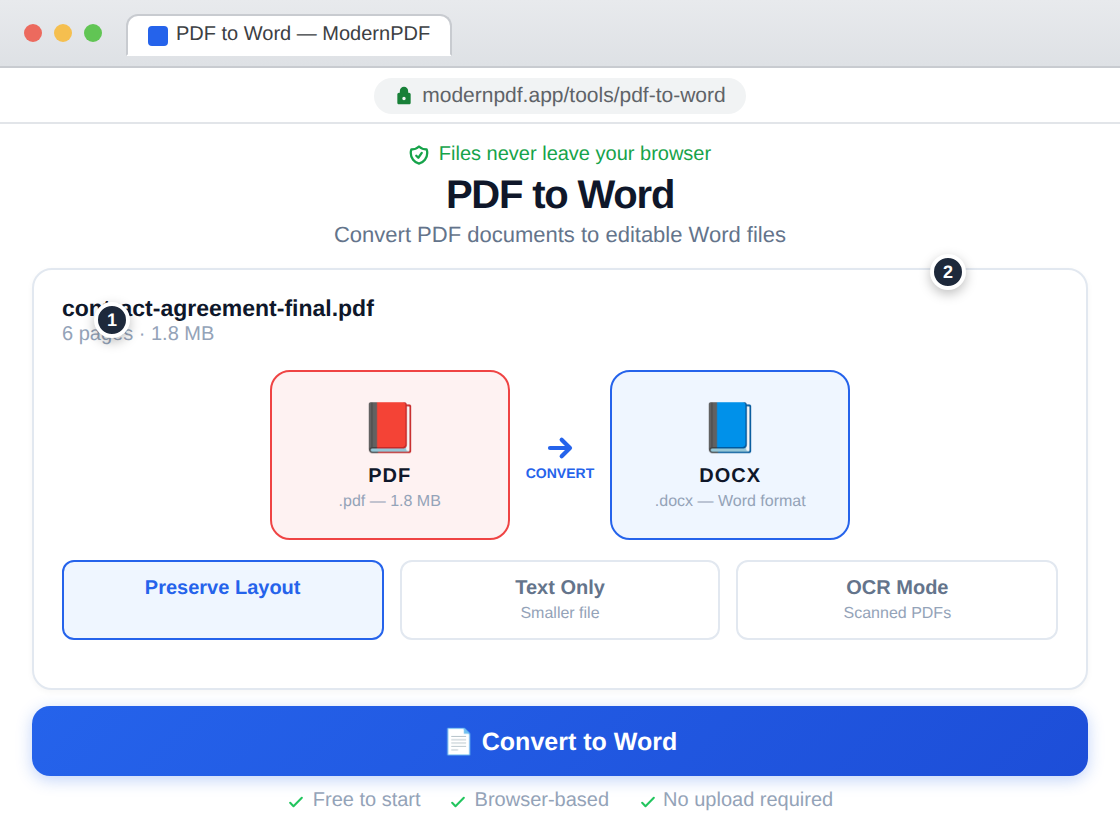
ModernPDF's PDF to Word converter transforms your PDF into an editable .docx file while preserving as much formatting as possible — all processed in your browser.
Step-by-step instructions:
- Go to ModernPDF PDF to Word and upload your PDF
- Choose a conversion mode: Preserve Layout (maintains formatting), Text Only (clean plain text), or OCR Mode (for scanned documents)
- Click "Convert to Word" and download the .docx file
Choosing the right mode: Use Preserve Layout for contracts, reports, and formatted documents — it maintains paragraph structure, headings, and basic table formatting. Use Text Only when you just need the content for repurposing in a new document. Use OCR Mode when the PDF is a scanned image rather than digital text.
Method 2: Use Microsoft Word Directly
Word 2013 and later can open PDFs directly and convert them to editable documents.
- Open Microsoft Word
- Go to File → Open and select your PDF
- Word will display a warning that the conversion may change formatting — click OK
- Edit the resulting document and save as .docx
Word's built-in conversion works reasonably well for simple, text-heavy documents. It struggles with complex layouts, multi-column designs, and PDFs with lots of images. The conversion also requires a desktop installation of Word — it doesn't work in Word Online.
Method 3: Use Google Docs
Google Docs offers a free conversion path through Google Drive.
- Upload the PDF to Google Drive
- Right-click the file and select "Open with → Google Docs"
- Google will convert the PDF to an editable document
- Download as .docx if needed
Google Docs conversion is free and works from any browser, but it strips most formatting — tables often break, images may shift, and page layout is typically lost. It's best for extracting raw text from simple documents. For anything with formatting you need to preserve, use a dedicated converter like ModernPDF.
Frequently Asked Questions
Will the Word file look exactly like the PDF?
No PDF-to-Word conversion is perfect — PDFs and Word documents handle layout fundamentally differently. Simple documents (letters, contracts, reports) convert well with minimal formatting changes. Complex layouts (brochures, magazines, heavily designed pages) will likely need manual cleanup after conversion.
Can I convert a scanned PDF to Word?
Yes — use the OCR Mode option. This runs optical character recognition on the scanned images to extract text, then converts the recognized text into an editable Word document. The accuracy depends on scan quality and font clarity.
Is the conversion free?
Yes. ModernPDF's free tier includes 3 conversions per day with files up to 10MB. Pro users get unlimited conversions and 500MB file support.
Is it safe to convert PDFs online?
With ModernPDF, the conversion happens entirely in your browser — your files are never uploaded. Other online converters (Smallpdf, iLovePDF, Zamzar) upload your files to their servers for processing, which poses privacy risks for sensitive documents.