How to Annotate a PDF with ModernPDF
Upload your PDF
Drag your document into the annotation tool. It loads instantly in your browser.
Add your annotations
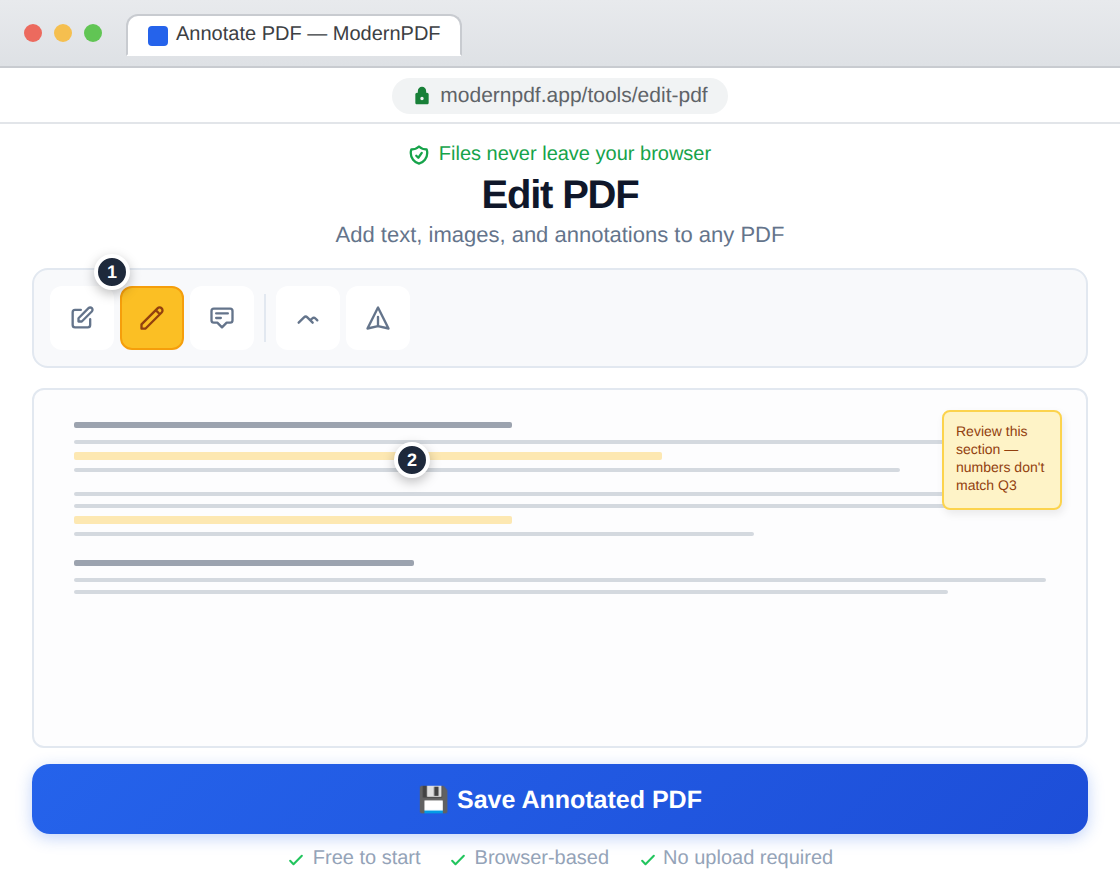
Use the toolbar to highlight text in multiple colors, add sticky notes with comments, insert text boxes for longer notes, draw arrows pointing to specific areas, or use freehand drawing for quick sketches.
Download your annotated document
Save and download the PDF with all annotations permanently embedded.
Annotation Types
Highlights are the most common annotation — select text and apply a colored overlay for easy scanning. Sticky notes let you attach comments that can be expanded and collapsed. Text boxes place visible text directly on the page for callouts and labels. Arrows and shapes point attention to specific elements. Freehand drawing is useful for circling items, crossing things out, or adding quick sketches.
When to Annotate
Reviewing documents for feedback or approval. Studying or taking notes on academic papers. Marking up contracts or proposals with questions. Providing design feedback on mockups and proofs. Highlighting key sections of reports for team members.
Annotation Workflow Tips
Use color coding consistently — for example, yellow for general notes, red for issues, green for approvals. Keep annotations concise and actionable. When reviewing long documents, use sticky notes for substantive comments and highlights for quick visual markers.
Frequently Asked Questions
Can I highlight text in a PDF?
Yes. Select the highlight tool, choose a color (yellow, green, pink, blue, etc.), then click and drag over the text you want to highlight. Use multiple colors to categorize different types of notes.
Will recipients see my annotations?
Yes. All annotations are embedded in the PDF file and visible to anyone who opens it in any PDF viewer. Some applications like Adobe Acrobat show annotations in a collapsible sidebar for easy review.
Can I remove annotations later?
Keep your original unannotated file as a backup. Once annotations are saved into the downloaded PDF, they become part of the document. To remove them, you'd need to re-edit the file or use the original clean copy.